 Invantive Estate
Example Connection Microsoft Access |
•Start the ODBC client (for example Microsoft Access):
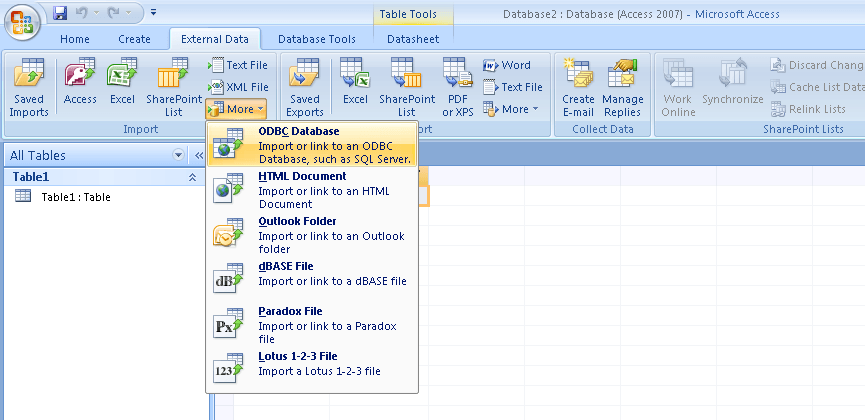
•Preferred connection is the kind where data is not copied:
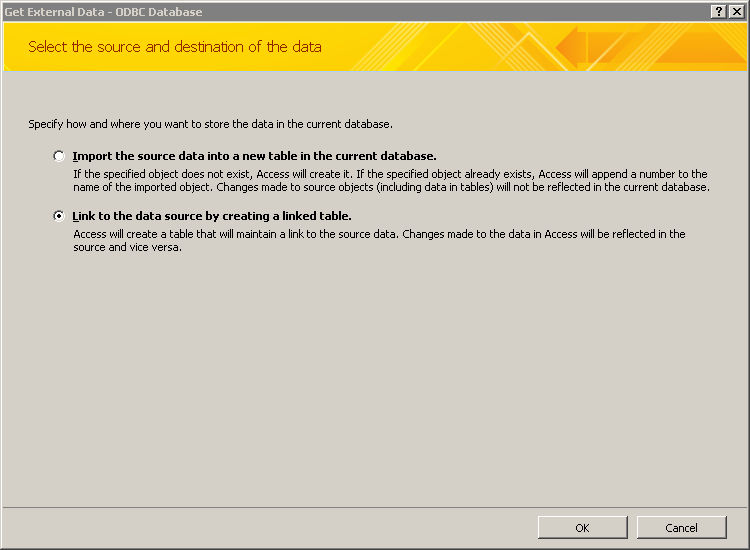
•Select the ODBC DSN:
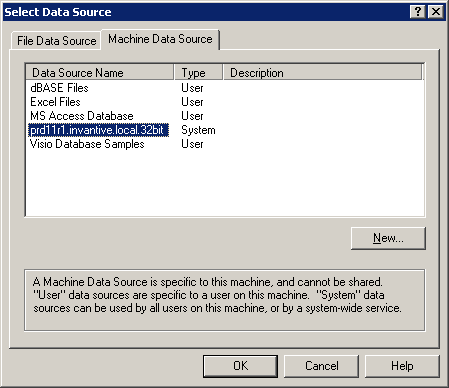
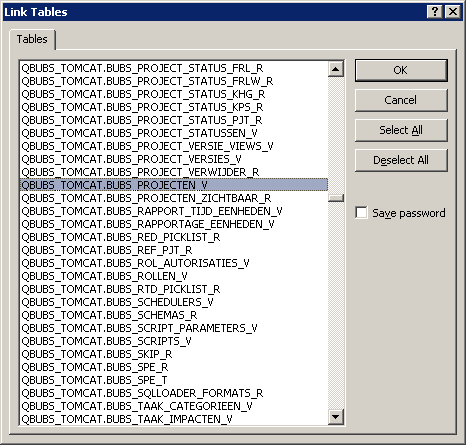
•Choose a business view:
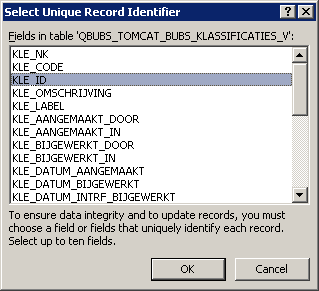
•Choose the unique key (always ID):
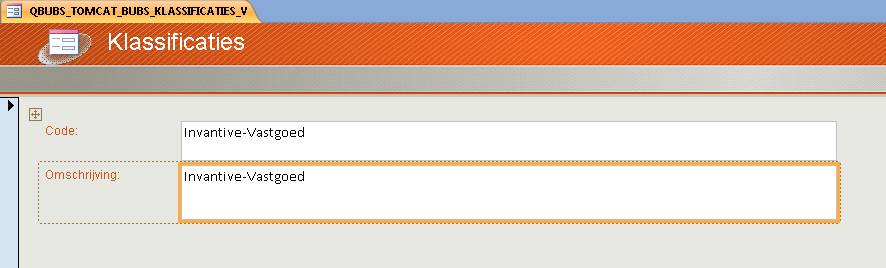
•The final result will look, for example, like this:
•Next the information can be requested and/or mutated in accordance with the established rights.
Example Connection with Microsoft Excel
After the ODBC connection is created, also a connection with Microsoft Excel and the associated Microsoft Query can be made.
This example will show the budgeted and actual costs for cost category 3200 for all projects:
•Start Microsoft Excel.
•Select the ribbon ‘Data’ and create a connection:
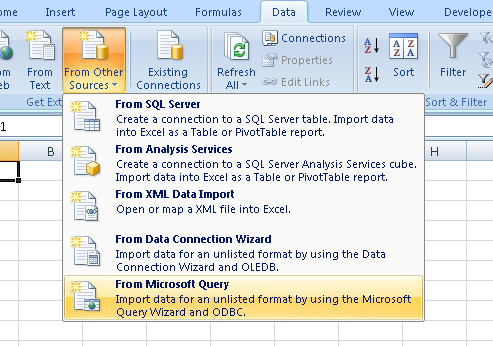
•Select ODBC DSN:
•Select a business view based on the technical reference manual:
•Select the preferred columns (budget, forecast, project, cost category):
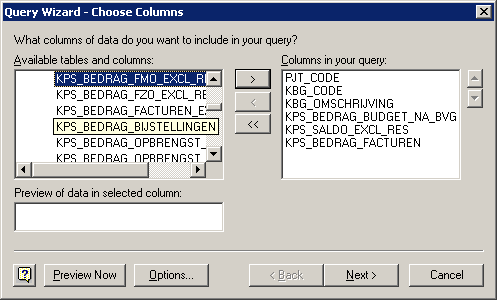
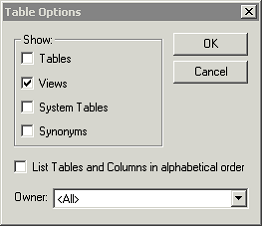
•Note: If the same tables are displayed at the same time, make sure that only ‘Views’ is selected using the button ‘Options’:
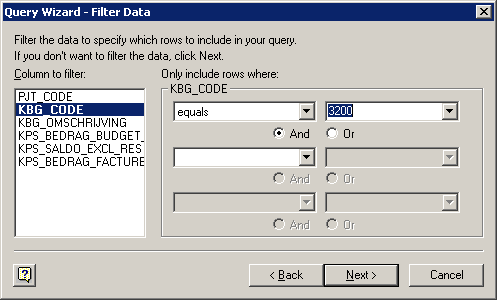
•Select the preferred filter on cost category ‘3200’:
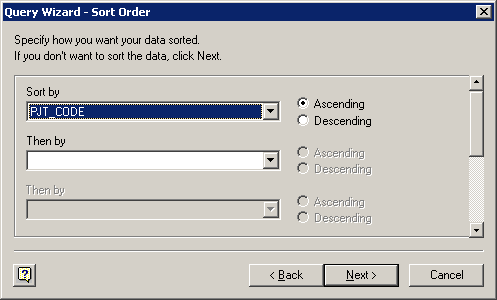
•Choose the desired collation on project code:
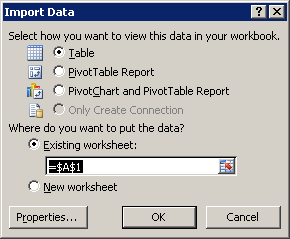
•Select the location in Microsoft Excel where the data should be placed:
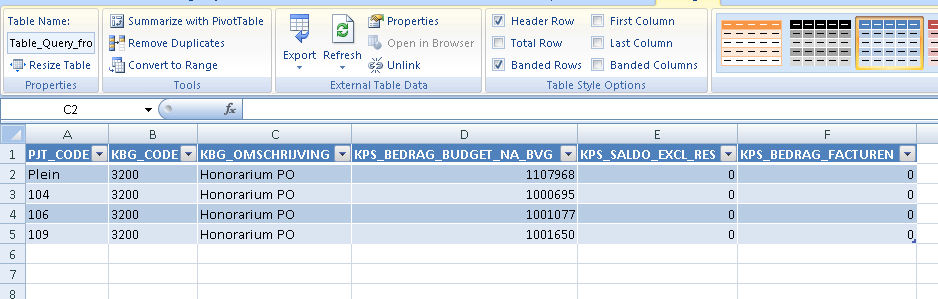
•The data becomes visible in Excel:
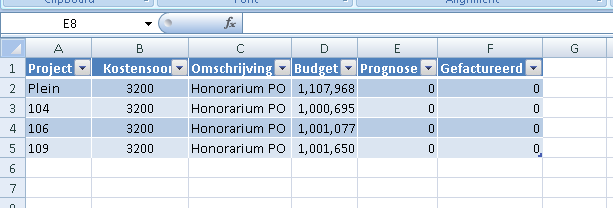
•Modify the layout of the data to get the final result:
•If needed, the data can be managed using parameters. Select 'Properties' in the tab 'Data'.
•Select the property button to the right of the question mark.
•Select ‘Edit Query’.
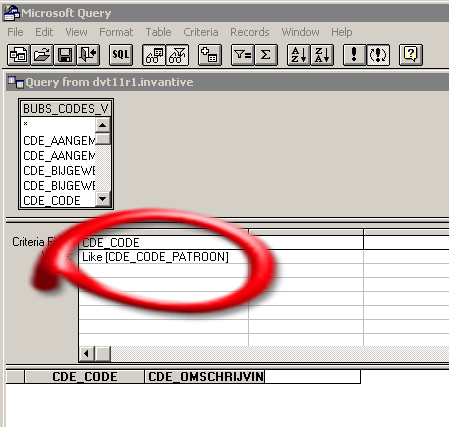
•Expand the query with parameters in the format ‘[DESCRIPTION]’, for example:
•Via the menu option ‘View’ and then ‘Parameters’ you open the screen:
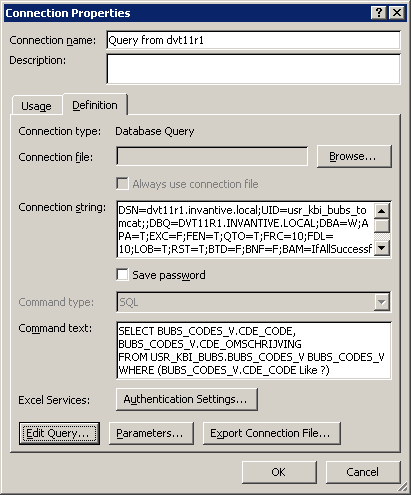
•Once a parameter is published via Microsoft Query, the button ‘Parameters’ will be available in the query properties:
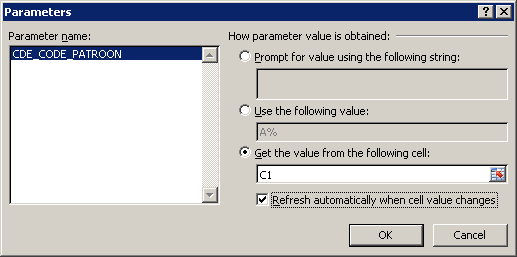
•You can use this button to specify that the question should be based on the contents of a cell: